
In Session Audio Troubleshooting
Quick Action Support Tools
As a support agent, you have three quick actions available to help participants with audio issues:
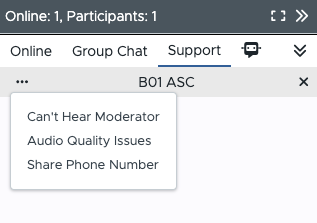
- "Can't Hear Moderator" - Use when:
- Participant reports they can't hear anything
- Participant hasn't connected to audio yet
- Initial audio connection issues
- "Audio Quality Issues" - Use when:
- Audio is breaking up
- Sound is robotic or choppy
- Participant can hear but quality is poor
- "Share Phone Number" - Use when:
- Computer audio isn't working
- Network restrictions prevent connection
- Participant prefers phone audio
Common Scenarios and Solutions
Participant Can't Hear Anything
- First, determine if they're connected:
- Look for green audio indicator
- Check if they've clicked the Join 🎧 button
- If not connected:
- Use "Can't Hear Moderator" quick action
- Guide them to the Join 🎧 button
- Watch for connection success
- If connected but no audio:
- Direct them to Device Settings via More menu
- Have them check computer volume
- Verify correct speaker selected
Poor Audio Quality
- Start with basic fixes:
- Use "Audio Quality Issues" quick action
- Suggest headphones
- Recommend closing other applications
- If issues persist:
- Guide them to Phone Audio option in More menu
- Or use "Share Phone Number" if needed
Network Restrictions
If participant mentions:
- Corporate firewall
- Network security
- VPN issues Use "Share Phone Number" quick action immediately
Best Practices for Support
- Progressive Assistance
- Start with quickest solutions
- Move to phone options if needed
- Keep messages clear and concise
- Monitor Success
- Watch for audio indicators
- Check if participant can hear after each step
- Follow up after solutions provided
- Communication Tips
- Be proactive in offering help
- Use quick actions to maintain consistent messaging
- Keep moderator informed of any ongoing issues
When to Escalate
- Multiple participants having issues
- Network-wide problems
- Technical issues beyond audio
Remember: Quick actions provide standardized, clear instructions. Use them as your primary support tool for audio issues.